
Wi-Fi Import
Drag. Drop.
Done.
Plinth shows a QR code. Scan it on your Mac, drag audio files from Finder into the browser page that opens. No cable, no iTunes, no cloud account in between.
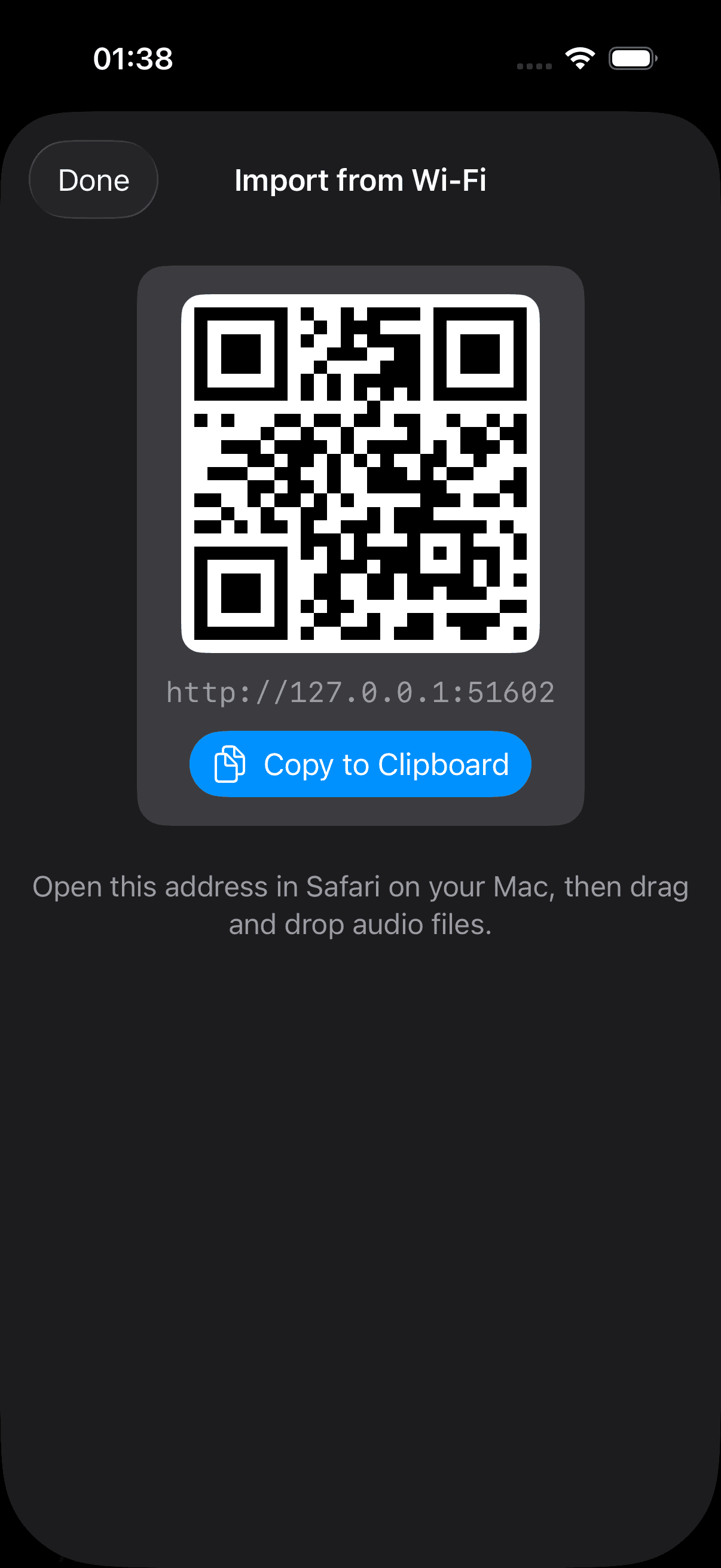
How Wi-Fi Import works
Open Import from Wi-Fi
In Settings on your iPhone or iPad, open Import from Wi-Fi. Plinth shows a QR code and starts a small local web server on your device.
Scan it on your Mac
Scan the code with your Mac's camera, or just visit the address shown underneath it. Either way opens a local upload page in your browser.
Drag audio files from Finder
Drag any audio files or folders from Finder straight into the browser page. Plinth receives and copies them over your Wi-Fi network — no cable, no intermediate app.
Available offline immediately
Files are copied locally to your device as they arrive, so they're ready to play the moment the transfer finishes — no ongoing connection required.
Questions about Wi-Fi Import
How do I get my music into Plinth over Wi-Fi?+
Open Settings → Import from Wi-Fi, scan the QR code on your Mac, and drag audio files from Finder into the browser page that opens in Safari. Files are copied locally so they're available offline immediately.
What audio formats does Plinth support?+
FLAC, WAV, ALAC (Apple Lossless), AIFF, MP3, M4A, and AAC. OGG Vorbis and Opus are not supported — AVFoundation, the Apple audio framework Plinth is built on, does not decode these formats natively.