
Metadata & Lyrics
Every tag.
Every word.
Bulk-edit tags across an entire album, fetch missing artwork from MusicBrainz and iTunes, and search lyrics to attach to any song — all without leaving your library.
How metadata and lyrics work
Enrichment reviewed before it's applied
After importing albums with incomplete tags, Plinth queries MusicBrainz and the iTunes Search API concurrently for title, year, genre, and artwork. You review each suggestion in a sheet before anything is written.
Manual edits write straight to the file
Long-press any track or album and open the Edit Metadata sheet to change title, artist, album artist, album, genre, year, track number, disc number, or artwork. Changes are written back to the audio file immediately, so your tags are portable.
Lyrics attached per song
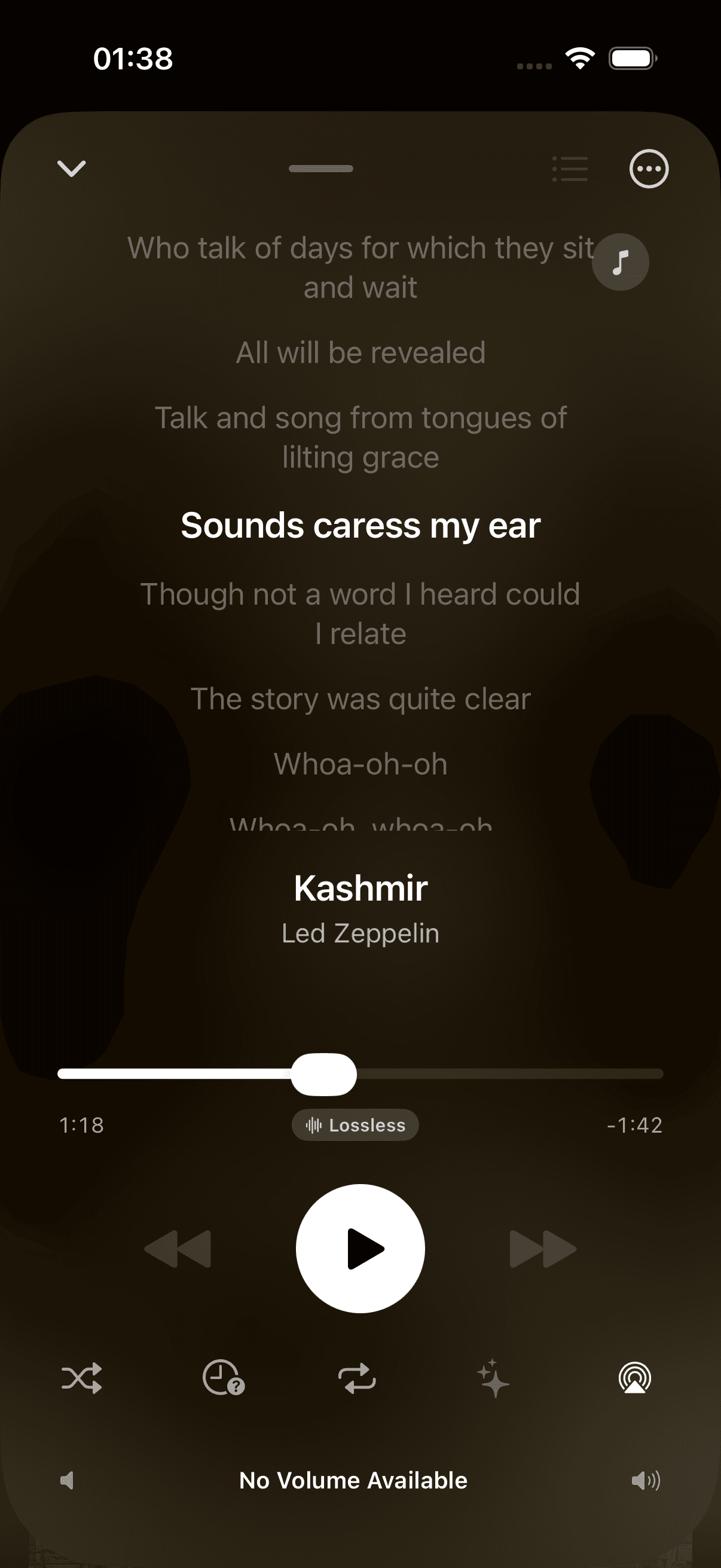
From Now Playing, open the ellipsis (⋯) menu and choose Search Lyrics. Plinth searches the LRCLIB database — tap a result to attach it, and it shows in a dedicated view during playback.
Questions about Metadata & Lyrics
How does metadata enrichment work?+
After importing albums with incomplete tags, Plinth queries MusicBrainz and the iTunes Search API concurrently to find release information — title, year, genre, and album artwork. You review each suggestion in a sheet before anything is applied. Accepted changes are written back to the audio files themselves so your tags are portable.
Can I edit metadata manually?+
Yes. Long-press any track or album to open the Edit Metadata sheet. You can change the title, artist, album artist, album, genre, year, track number, disc number, and artwork. Changes are written back to the audio file immediately.
Can I attach lyrics to a song?+
Yes. In Now Playing, tap the ellipsis (⋯) menu and choose Search Lyrics. Plinth searches the LRCLIB database and shows results. Tap any result to attach it to the song — lyrics are stored in the app and shown in a dedicated view during playback.